If you browse through a dozen local real estate websites, you’ll probably notice a recurring theme: endless, static grids of property thumbnails.
While the classic grid view is great for displaying a high volume of listings, modern homebuyers are looking for a more engaging, interactive search experience. If your website looks exactly like your competitor’s, it’s hard to keep buyers on your page.
The good news? If you use the SimplyRETS Real Estate IDX WordPress plugin, you aren’t limited to the simple grids and list views of your properties. Here are four creative ways to display MLS data on your WordPress site to keep buyers engaged, boost your local SEO, and build trust.
1. Interactive Polygon Map Searches
Buyers rarely search for homes in perfect squares or circles. They want to live “west of the highway,” “near a particular school,” or “inside the loop.”
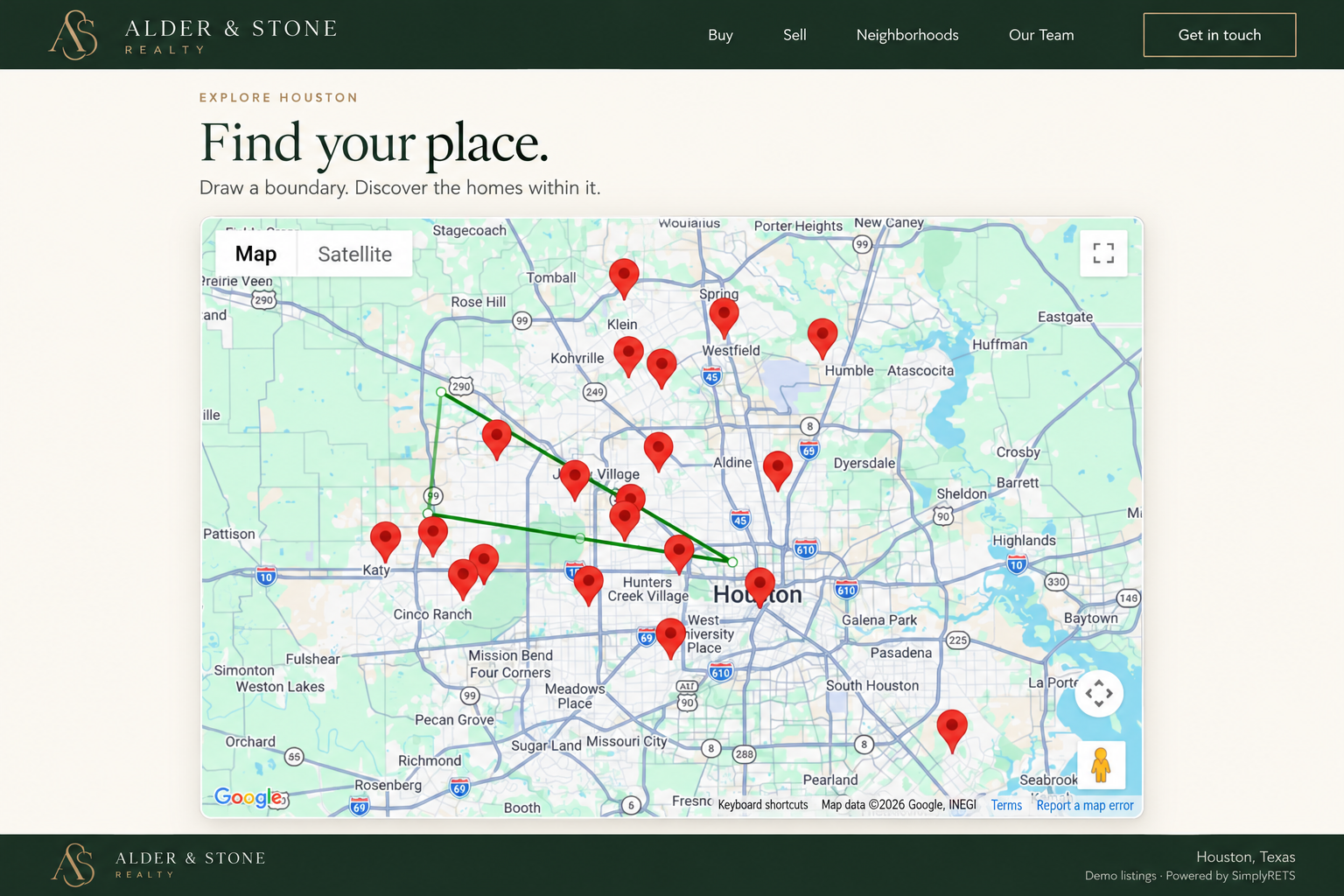
Instead of forcing users to rely entirely on zip codes, you can empower them to draw their own search boundaries. Using the SimplyRETS map shortcode, users can draw custom polygons directly on the map to filter listings down to the area they want.
How to use it: Simply drop the map search shortcode onto any page to instantly generate an interactive map:
[sr_map_search]See the map search documentation and live demo for options such as adding a search form or showing listing cards below the map. You’ll also need to configure a Google Maps API key in the plugin settings.
2. The “Hero” Listing Carousel
When you have a featured listing, a hot new property, or a specific neighborhood you want to highlight, a grid can easily bury the most important properties.
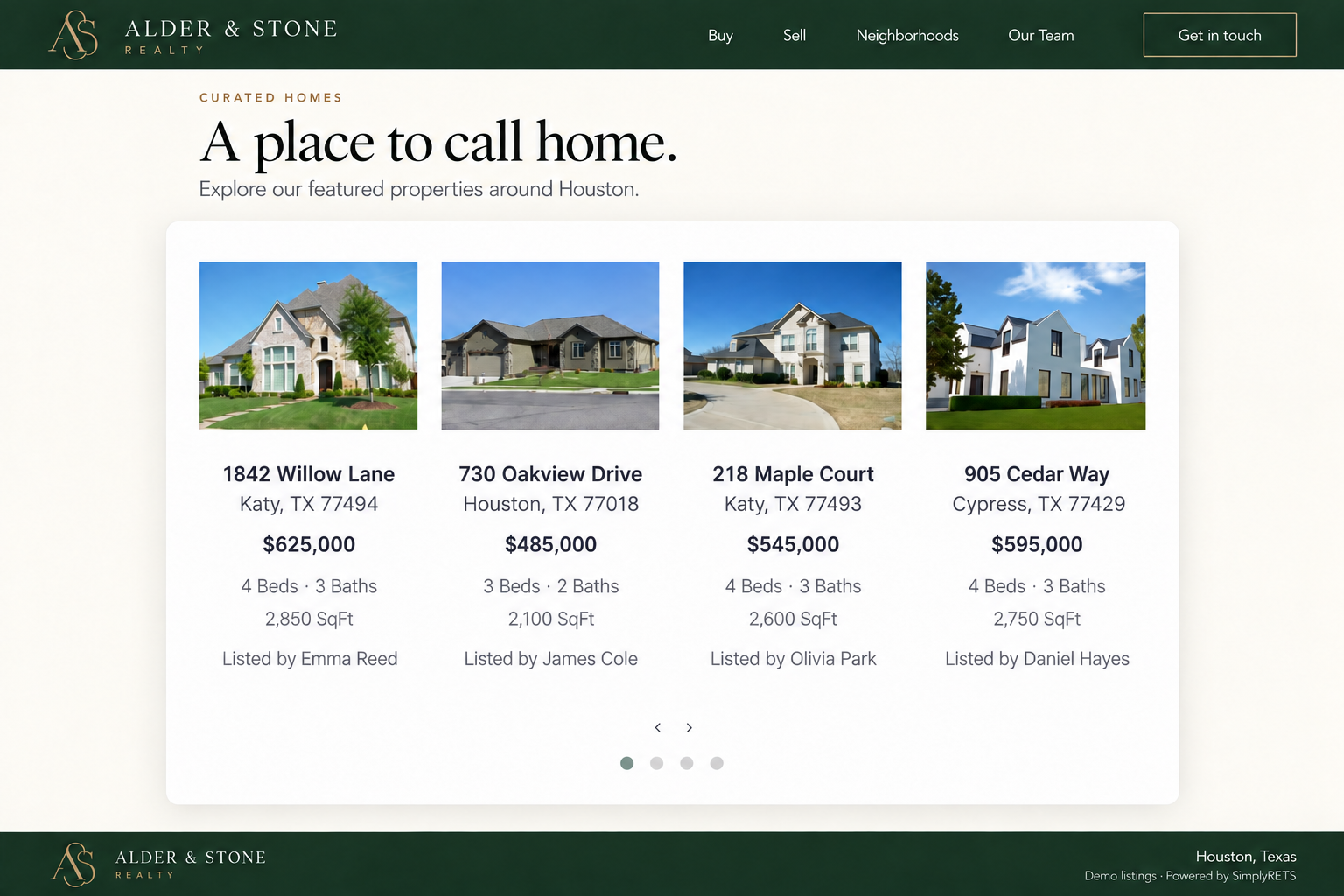
Instead, use a dynamic listing carousel. The SimplyRETS slider feature creates a swipeable carousel of listings for your homepage or the top of a neighborhood guide. Navigation arrows let visitors browse the properties, and the slider centers smaller sets of listings—including a single featured property.
How to use it: You can generate a slider and filter it by specific criteria right in the shortcode:
[sr_listings_slider cities="Houston" type="Residential"]See the listing carousel documentation and live demo for more filters and display options.
3. Hyper-Local Neighborhood Landing Pages
Sending every visitor to a generic “Search All Homes” page can make it harder for them to find the properties that brought them to your site.
Create specific landing pages for individual neighborhoods, school districts, or property types, pairing useful local information with relevant listings. This gives visitors a more focused starting point and can support your local SEO strategy. With SimplyRETS, you don’t need to write custom API queries to do this. You can use our shortcodes to automatically generate filtered lists of properties that match the topic of your page.
How to use it: Building a page for waterfront condos in Miami? Just use this shortcode to automatically pull the right data:
[sr_listings cities="Miami" type="Condominium" water="true"]See the listing shortcode documentation for filters such as neighborhoods, cities, and property types. Available results depend on your MLS feed, including whether it provides waterfront information.
4. Add MLS Branding and Required Disclaimers
Help visitors understand where your listing data comes from by displaying your MLS’s approved IDX or broker reciprocity logo alongside listing summaries and on listing details pages.
The plugin’s display settings also let you show listing brokerage information and add a custom disclaimer. Together, these options can help you meet your MLS’s display requirements while giving buyers useful context about the source of the listings.
How to use it: Navigate to Settings → SimplyRETS in your WordPress dashboard and look for the IDX image for listing thumbnails setting. Enter the URL of the logo approved for your MLS feed. Review the listing office display and Custom disclaimer options for any additional information your MLS requires.
See the MLS compliance settings documentation for details. Confirm the required logo, attribution, and disclaimer wording with your MLS; adding a logo alone does not guarantee data accuracy or satisfy every display requirement.
Ready to Upgrade Your Real Estate Site?
You don’t need to be a senior developer to create a more useful real estate search experience. With the SimplyRETS plugin, you can go beyond the grid and help visitors discover properties that fit their needs.
Check out our full WordPress Shortcode Documentation here to see what else you can build, or Sign up for a SimplyRETS account to get your API credentials today!